

PixiJS 連連看遊戲的開始、結束與過關畫面,可以用一個預設隱藏的 Container 當作覆蓋層,再透過事件切換文字與顯示狀態。這篇保留 2018 年連連看遊戲開發筆記的實作方式,重點放在 PIXI.Text、GameRoundEnd 類別、EventEmitter 流程,以及「過關、逾時、無路可走」三種結局的判斷。
PixiJS 連連看為什麼需要結束與過關畫面?
PixiJS 連連看需要結束與過關畫面,因為玩家完成盤面、時間用完或盤面無路可走時,都需要清楚知道目前局面,並能重新開始遊戲。
每個遊戲一般都會需要關卡的概念,也就是過關後可以再重新進行遊戲,並且需要有關卡結局畫面。這個連連看版本要做的,就是一個可在過關或遊戲結束時出現的覆蓋畫面。
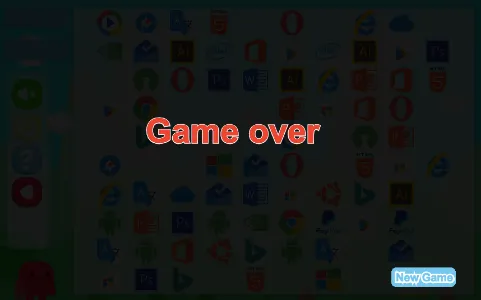
這個畫面不需要拆成獨立頁面。用 PixiJS 製作時,可以把結束畫面做成一個 Container,平常設定 visible = false,等遊戲流程送出事件時再顯示。這樣盤面、音效、提示與重新開始按鈕都仍然留在同一個遊戲流程裡。
PixiJS 內要怎麼使用文字?
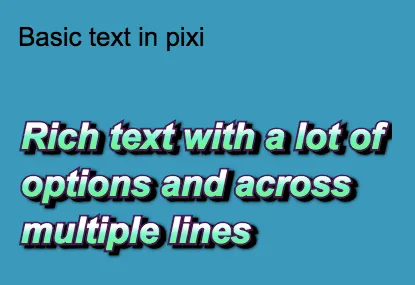
PixiJS 4.0 之後可以直接用 PIXI.Text 和 PIXI.TextStyle 做文字效果。一般文字、漸層填色、外框、陰影與自動換行都能在 canvas 裡完成。
以下是 PixiJS 官方文字範例的寫法,先建立 PIXI.Text,再把文字物件加入 app.stage:
var app = new PIXI.Application(800, 600, {backgroundColor: 0x1099bb});
document.body.appendChild(app.view);

var basicText = new PIXI.Text('Basic text in pixi');
basicText.x = 30;
basicText.y = 90;

app.stage.addChild(basicText);

var style = new PIXI.TextStyle({
    fontFamily: 'Arial',
    fontSize: 36,
    fontStyle: 'italic',
    fontWeight: 'bold',
    fill: ['#ffffff', '#00ff99'], // gradient
    stroke: '#4a1850',
    strokeThickness: 5,
    dropShadow: true,
    dropShadowColor: '#000000',
    dropShadowBlur: 4,
    dropShadowAngle: Math.PI / 6,
    dropShadowDistance: 6,
    wordWrap: true,
    wordWrapWidth: 440
});

var richText = new PIXI.Text('Rich text with a lot of options and across multiple lines', style);
richText.x = 30;
richText.y = 180;

app.stage.addChild(richText);
成果如下:
PixiJS BitmapText 適合用在遊戲文字嗎?
PixiJS BitmapText 適合用在大量或固定樣式的遊戲文字,因為 Bitmap font 會把字型預先轉成貼圖,再由 PixiJS 顯示文字內容。
PixiJS 也支援 Bitmap font。下面是 PixiJS 官方 demo 的概念:先載入 WebFont,再載入 desyrel.xml,最後用 PIXI.extras.BitmapText 建立文字。
var app = new PIXI.Application();
document.body.appendChild(app.view);

// // Load them google fonts before starting...!
window.WebFontConfig = {
    google: {
        families: ['Snippet', 'Arvo:700italic', 'Podkova:700']
    },

    active: function() {
        // do something
        init();
    }
};

// include the web-font loader script
/* jshint ignore:start */
(function() {
    var wf = document.createElement('script');
    wf.src = ('https:' === document.location.protocol ? 'https' : 'http') +
        '://ajax.googleapis.com/ajax/libs/webfont/1/webfont.js';
    wf.type = 'text/javascript';
    wf.async = 'true';
    var s = document.getElementsByTagName('script')[0];
    s.parentNode.insertBefore(wf, s);
})();
/* jshint ignore:end */

function init()
{
    PIXI.loader
        .add('desyrel', 'required/assets/desyrel.xml')
        .load(onAssetsLoaded);

    function onAssetsLoaded() {
        var bitmapFontText = new PIXI.extras.BitmapText('bitmap fonts are\n now supported!', { font: '35px Desyrel', align: 'right' });

        bitmapFontText.x = app.screen.width - bitmapFontText.textWidth - 20;
        bitmapFontText.y = 20;

        app.stage.addChild(bitmapFontText);
    }
}
顯示成果如下:
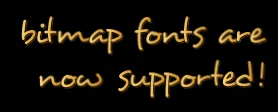
在這個連連看結束畫面中,使用一般 PIXI.Text 已經足夠,因為畫面上只有結局訊息和 New Game 文字。若遊戲後續有分數、倒數、傷害數字或大量動態文字,再考慮把固定樣式改成 Bitmap font。
GameRoundEnd 類別怎麼做結束畫面?
GameRoundEnd 類別可以繼承 PIXI.Container,用黑色半透明 Graphics 畫出遮罩,再放入結局文字與重新開始按鈕。
新增檔案 GameRoundEnd.ts,讓結束畫面本身負責三件事:接收遊戲流程事件、顯示不同結局文字、按下 New Game 後送出重開事件。平常畫面隱藏,收到過關或失敗事件才顯示。
import Container = PIXI.Container;
import { eventEmitter } from "../Main";
import { GameFlowEvent } from "../core/Event";

export class GameRoundEnd extends Container {
    private text:PIXI.Text;
    constructor() {
        super();
        this.interactive = true;
        this.visible = false;
        eventEmitter.on(GameFlowEvent.GameEndWithTimeout, ()=>{
            this.text.text = "Time is up!";
            this.text.x = 260;
            this.text.y = 200;
            this.visible = true;
        });
        eventEmitter.on(GameFlowEvent.GameEndWithNoPath, ()=>{
            this.text.text = "Game over";
            this.text.x = 260;
            this.text.y = 200;
            this.visible = true;
        });
        eventEmitter.on(GameFlowEvent.GamePass, ()=>{
            this.text.text = "Congratulations! \nYou passed!";
            this.text.x = 210;
            this.text.y = 200;
            this.visible = true;
        });
        // 黑底
        let gt = new PIXI.Graphics();
        gt.beginFill(0x000000, 0.9);
        gt.drawRect(0,0,860,540);
        gt.endFill();
        this.addChild(gt);
        // 文字
        this.text = new PIXI.Text("Congratulations! \nYou passed!", {
            fontWeight: 'bold',
            fontSize: 60,
            fontFamily: 'Arial',
            fill: '#ff0000',
            align: 'center',
            stroke: '#FFFFFF',
            strokeThickness: 3
        });
        this.addChild(this.text);
        // 再玩一次按鈕
        let btn = new PIXI.Graphics();
        btn.beginFill(0x75C7ED);
        btn.drawRoundedRect(700,480,115,35,10);
        btn.endFill();
        btn.buttonMode = true;
        btn.interactive = true;
        btn.on("mouseup", this.trigger.bind(this));
        btn.on("touchend", this.trigger.bind(this));
        this.addChild(btn);
        let newGame = new PIXI.Text("New Game", {
            fontWeight: 'bold',
            fontSize: 20,
            fontFamily: 'Arial',
            fill: '#75C6ED',
            align: 'center',
            stroke: '#FFFFFF',
            strokeThickness: 6
        });
        newGame.x = 705;
        newGame.y = 483;
        this.addChild(newGame);
    }
    public trigger(){
        eventEmitter.emit(GameFlowEvent.CreateNewGameRequest);
        this.visible = false;
    }
}
這段實作有一個很實用的模式:結束畫面的狀態不直接檢查棋盤,而是聽 GameFlowEvent。盤面邏輯只負責送出「發生了什麼事」,畫面層只負責「要顯示什麼」,後面要換 UI 或加動畫會比較好改。
| 事件 | 畫面文字 | 使用情境 |
|---|---|---|
GameEndWithTimeout | Time is up! | 倒數時間結束 |
GameEndWithNoPath | Game over | 盤面沒有可消除路徑,且不能再重整 |
GamePass | Congratulations! You passed! | 所有圖塊都消除完成 |
CreateNewGameRequest | 隱藏結束畫面 | 玩家按下 New Game |
GameBoard 要怎麼判斷過關或無路可走?
GameBoard 可以在兩個圖塊成功連線並消除後,立刻檢查盤面是否清空,或是否已經找不到下一組可消除路徑。
修改 GameBoard.ts 內 iconClickHandler 的內容如下。這段邏輯會先取消提示、處理第二次選取,再判斷兩張圖是否相同、路徑是否能連線、是否要消除圖塊。成功消除後,才進入過關與僵局判斷。
let iconClickHandler = ()=>{
    this.cancelTips();
    if (this.selected) {
        let selectCorrect = false;
        this.select2 = new Point(x, y);
        this.iconSelected(this.select2);
        setTimeout(()=>{
            if (board.hasSameValue(this.select1, this.select2)) {
                if (! (this.select1.x == x && this.select1.y == y) ) {
                    let path = new Path(this.select1, this.select2, board);
                    if(path.canLinkInLine()){
                        this.pathHistory.push(path);
                        this.valueHistory.push(board.getValue(this.select1));
                        LinkedLine.instance.drawPath(path);
                        this.clearIcon(this.select1);
                        this.clearIcon(this.select2);
                        eventEmitter.emit(GameFlowEvent.LinkedLineSuccess);
                        selectCorrect = true;
                        // 判斷還有沒有路走
                        if(board.gameRoundEnd()){
                            eventEmitter.emit(GameFlowEvent.GamePass);
                        }else if(board.getFirstExistPath() == null){
                            if(reloadTimes > 0){
                                this.reloadBoard();
                                eventEmitter.emit(GameFlowEvent.BoardNeedReload);
                            }else{
                                eventEmitter.emit(GameFlowEvent.GameEndWithNoPath);
                            }
                        }
                    }
                }
            }
            if(selectCorrect){
                SoundMgr.play('Sound_select_crrect');
            }else{
                SoundMgr.play('Sound_select_error');
                this.iconUnSelected(this.select1);
                this.iconUnSelected(this.select2);
            }
            this.selected = false;
        },0);

    } else {
        this.select1 = new Point(x, y);
        this.iconSelected(this.select1);
        this.selected = true;
        SoundMgr.play('Sound_select_1');

    }
};
這裡的判斷順序很重要。board.gameRoundEnd() 要在成功清除兩張圖之後才檢查,否則盤面狀態還沒更新;board.getFirstExistPath() == null 則用來判斷是否無路可走。若還有重整次數,就重整盤面;若沒有重整次數,就送出 GameEndWithNoPath。
PixiJS 遊戲流程事件怎麼串起來?
PixiJS 連連看可以把遊戲流程拆成「盤面送事件、畫面聽事件、按鈕再送事件」。這種事件式寫法能降低 GameBoard 與 GameRoundEnd 之間的耦合。
從這篇筆記看,連連看結局流程可以整理成四個步驟:
- 玩家點兩張圖,
GameBoard判斷圖案是否相同。 Path.canLinkInLine()判斷兩張圖是否能連線消除。- 成功消除後,
GameBoard檢查過關、無路可走或需要重整。 GameRoundEnd收到GamePass、GameEndWithTimeout或GameEndWithNoPath後顯示覆蓋畫面。
這份實作的資訊增益,是把連連看結局畫面當成「遊戲流程狀態」來處理,而不是把文字提示散落在點擊邏輯中。小型 H5 遊戲很容易在開發後期把 UI、音效、判斷條件混在同一個函式裡;先用事件分層,之後要加倒數計時、下一關、分數結算或排行榜,都比較不會牽一髮動全身。
今日成果有哪些?
這次完成 PixiJS 連連看遊戲的結束與過關畫面,並把盤面消除後的結果判斷接回遊戲流程事件。
線上 demo:https://claire-chang.com/ironman2018/1109/
今日成果下載:ironman20181109.zip(原下載連結已失效)
常見問題
PixiJS 連連看結束畫面一定要做成獨立場景嗎?
PixiJS 連連看結束畫面不一定要做成獨立場景。小型遊戲可以先用一個 Container 當覆蓋層,平常隱藏,需要時再顯示。
PixiJS 過關畫面要用 Sprite 還是 Text?
PixiJS 過關畫面如果只需要顯示文字,用 PIXI.Text 就夠了。若過關畫面有完整美術圖、角色動畫或背景,可以再搭配 Sprite 和 AnimatedSprite。
GameEndWithNoPath 和 GamePass 有什麼不同?
GamePass 代表盤面上的圖塊都已經消除完成。GameEndWithNoPath 代表盤面還有圖塊,但已經找不到可連線消除的路徑,而且沒有剩餘重整次數。
New Game 按鈕為什麼要送出 CreateNewGameRequest?
CreateNewGameRequest 讓結束畫面不用直接建立新盤面。按鈕只送出「玩家想重新開始」這個意圖,真正重開遊戲的流程交給主程式或遊戲流程管理者處理。
PixiJS BitmapText 什麼時候比 Text 更適合?
PixiJS BitmapText 適合固定字型、固定樣式、數量較多或更新頻率高的遊戲文字。單一結局訊息或按鈕文字通常用 PIXI.Text 比較直覺。
參考資料
- PixiJS Text example
- PixiJS Bitmap font demo
- 連連看遊戲線上 demo
- ironman20181109 成果下載(原下載連結已失效)
延伸閱讀
- 連連看遊戲開發前言:從規則、益智遊戲定位到 PixiJS 製作規劃:同樣聚焦 PixiJS、TypeScript,可接著比較不同情境的做法。
- PixiJS 提示與重整按鈕教學:連連看遊戲功能實作:同樣聚焦 PixiJS、TypeScript,可接著比較不同情境的做法。
- PixiJS 連連看完整功能實作:倒數計時、生命值與 FB 按鈕:同樣聚焦 PixiJS、TypeScript,可接著比較不同情境的做法。
最後更新
2018-11-09(本文保留 2018 年 PixiJS 連連看開發筆記內容,並補上 GEO 結構、FAQ 與站內延伸閱讀。)
關於作者
Claire Chang | 企業 AI 導入與流程轉型顧問。專注於 AI Agent 架構設計、ERP 系統整合與企業 AI 治理。
首次發布:2018-11-09